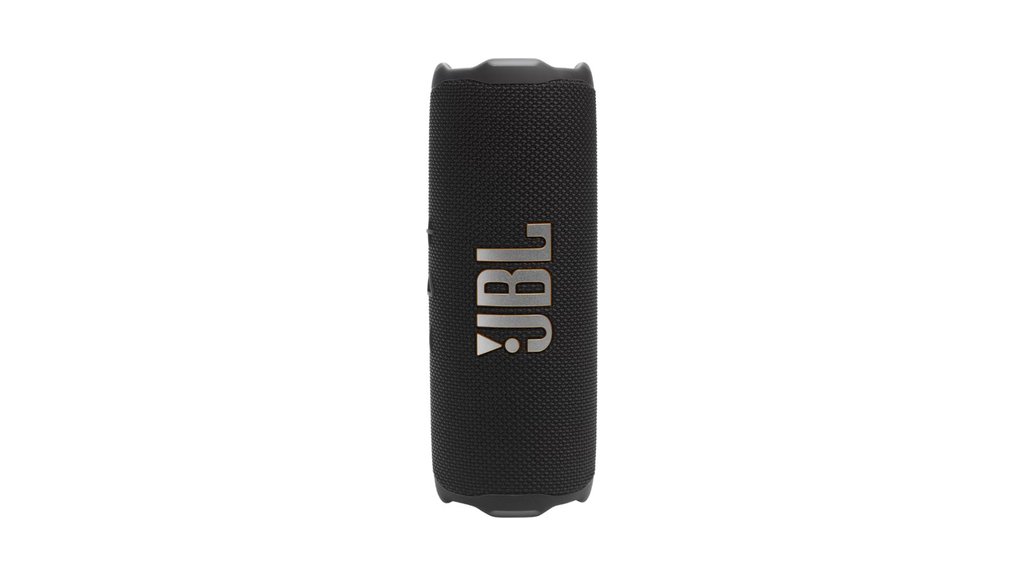
To connect a Bluetooth speaker to a TV, put the speaker in pairing mode, open your TV's Bluetooth or sound output settings, and select the speaker from the list. On a Samsung TV, that's Settings, All Settings, Sound, Sound Output, Bluetooth Speaker List. If your TV has no Bluetooth audio option, a small Bluetooth transmitter plugged into its optical or headphone port does the same job.
Bluetooth is the easiest way to add a portable speaker to your TV without running cables. Below, you'll find step-by-step instructions for Samsung, LG, Sony and other Google TV models, Roku and Amazon Fire TV, plus what to do if your TV doesn't support Bluetooth audio and how to fix lag and dropouts.
Before You Start: Check Your TV Supports Bluetooth Audio
Not every TV can send sound to a Bluetooth speaker. Some TVs use Bluetooth only for their remote or for keyboards. Samsung, for example, says Bluetooth audio is supported "on some QLED, UHD, and SUHD TV models," and Sony says "not all Sony's Android TVs or Google TVs can be used with Bluetooth headphones or speakers."
The quickest test is to open your TV's sound or audio output settings. If you see a Bluetooth option, a Bluetooth speaker list or a wireless speaker setting, your TV supports it. If not, skip to what to do if your TV doesn't have Bluetooth.
Next, put your speaker in pairing mode. On most Bluetooth speakers, you hold the Bluetooth button until a light flashes or you hear a tone. Check your speaker's manual if you're not sure. Keep it close to the TV while you pair.
How to Connect a Bluetooth Speaker to a Samsung TV
- Put the speaker in pairing mode.
- On your TV, go to Settings, then All Settings.
- Select Sound, then Sound Output, then Bluetooth Speaker List.
- Choose your speaker from the list to pair and connect it.
Samsung notes that "you can only pair one Bluetooth audio device at a time," and that Bluetooth can't be used at the same time as Wi-Fi Speaker Surround or TV SoundConnect. Samsung also warns that some headphones made only for phones won't pair with a TV.
How to Connect a Bluetooth Speaker to an LG TV
- Put the speaker in pairing mode.
- Press the settings button on your LG remote and go to All Settings.
- Open the Sound menu and choose Sound Out.
- Select Use Wireless Speaker or Bluetooth Device, then pick your speaker from the list.
Menu names differ a little between webOS versions. On older LG TVs, look for LG Sound Sync / Bluetooth under the sound output settings and select Detect to search for the speaker.
How to Connect a Bluetooth Speaker to a Sony or Google TV
These steps work on Sony Bravia Google TV and Android TV models, and the menus are very similar on other Google TV sets.
- Put the speaker in pairing mode.
- Open Settings from the Home screen or Quick Settings.
- Select Remotes & Accessories, then Bluetooth settings if you see it.
- Choose Pair accessory, Add accessory or Add device.
- Select your speaker when it appears. Sony says the list can take a few minutes to show up.
How to Connect a Bluetooth Speaker to a Roku TV or Roku Player
Roku works differently from other brands. Most Roku devices don't pair with regular Bluetooth speakers directly.
- Roku Plus Series TVs: Roku says "a Bluetooth device can be connected directly to a Roku Plus Series TV."
- Other Roku TVs: Roku says you need to add Roku Wireless Speakers or a Roku TV Wireless Soundbar to get Bluetooth.
- Bluetooth headphones: newer Roku devices, including the Roku Ultra, Roku Streaming Stick and Plus and Pro Series TVs, support wireless headphones under Settings, Remotes & devices, Wireless headphones, Add new wireless headphones.
- Private listening: on any Roku, the free Roku mobile app can play TV audio through your phone and the headphones connected to it. Roku says up to four people can listen this way at once.
If your Roku can't pair your speaker, a Bluetooth transmitter on the TV's audio output is the simplest fix.
How to Connect a Bluetooth Speaker to a Fire TV
- Put the speaker in pairing mode.
- From the Home screen, open Settings.
- Select Controllers & Bluetooth Devices, then Other Bluetooth Devices.
- Choose Add Bluetooth Devices and select your speaker.
On Fire TV smart TVs, you can choose where sound plays under Settings, Display & Sounds, Audio Output. Some models let you play sound through the Bluetooth speaker only, or through both the TV speakers and the Bluetooth speaker.
What If Your TV Doesn't Have Bluetooth?
You can still use a Bluetooth speaker with an inexpensive Bluetooth transmitter. It plugs into one of your TV's audio outputs and sends that sound to your speaker. Samsung recommends the same approach for its TVs without Bluetooth, using the 3.5mm or RCA output.
- Optical output: the most common choice on modern TVs. Pick a transmitter with an optical input and an optical cable.
- Headphone jack: a 3.5mm transmitter is the simplest option if your TV has one.
- RCA audio out: older TVs often have red and white audio outputs.
Look for a transmitter that supports a low-latency Bluetooth codec, and check that your speaker supports the same codec. That helps keep voices in sync with lips. If you'd rather add Bluetooth to a stereo or receiver, see our guide to Bluetooth audio receivers.
How to Fix Bluetooth Audio Delay and Dropouts
Bluetooth adds a small delay to audio, and Samsung and Sony both warn that sound and picture can drift out of sync. Try these fixes:
- Use the TV's audio delay setting: many TVs and streaming devices have an AV sync, audio delay or lip sync option in the sound menu.
- Move the speaker closer: walls, distance and other wireless devices can cause dropouts.
- Forget and re-pair: remove the speaker from the TV's Bluetooth list, turn both off and on, then pair again.
- Update software: install the latest firmware for the TV and the speaker.
- Turn off other Bluetooth devices: many TVs can only send audio to one Bluetooth device at a time.
Is Bluetooth the Best Way to Add a Speaker to Your TV?
Bluetooth is great for a portable speaker or for watching in another room, but it isn't the best option for a permanent setup. Samsung's own support page calls Bluetooth "usually a last resort" compared with Wi-Fi speakers or a wired connection. For the best sound and no lag, connect a soundbar or receiver through HDMI ARC or eARC, which also lets your TV remote control the volume. If you mostly want sound on a patio or deck, our outdoor Bluetooth speakers roundup is a good place to start.
Frequently Asked Questions
Can I connect any Bluetooth speaker to my TV?
Most Bluetooth speakers will pair with a TV that supports Bluetooth audio output. If your TV only uses Bluetooth for remotes and keyboards, add a Bluetooth transmitter to the TV's optical or headphone output.
Can I connect two Bluetooth speakers to my TV?
Usually not. Many TVs, including Samsung models, connect to only one Bluetooth audio device at a time. Some speaker brands let you link a second speaker to the first through their own app instead.
Why is my Bluetooth speaker not showing up on my TV?
Make sure the speaker is in pairing mode and not already connected to your phone. Move it closer to the TV, then search again. If it still doesn't appear, check that your TV model supports Bluetooth audio.
How do I fix sound delay on a Bluetooth speaker?
Look for an AV sync or audio delay setting on your TV or streaming device. If that doesn't help, a wired connection or an HDMI ARC soundbar avoids Bluetooth delay entirely.
Will the TV speakers turn off when I connect a Bluetooth speaker?
On most TVs, yes. Once the Bluetooth speaker is selected as the sound output, the TV speakers go quiet. Some Fire TV models let you play audio through both at once.
Sources


